Plugging in your external hard drive only to be greeted by the ominous message, "Drive is not accessible. The parameter is incorrect," is a heart-dropping moment. Suddenly, years of family photos, crucial work documents, or vital backups seem locked away forever.
In a panic, many people make the fatal mistake of clicking "Format" when prompted by Windows. Stop right there! Formatting will erase everything. This error usually points to a logical file system issue or a connection problem, not a completely dead drive.
Here is a comprehensive, step-by-step guide to fixing this error and rescuing your data safely.
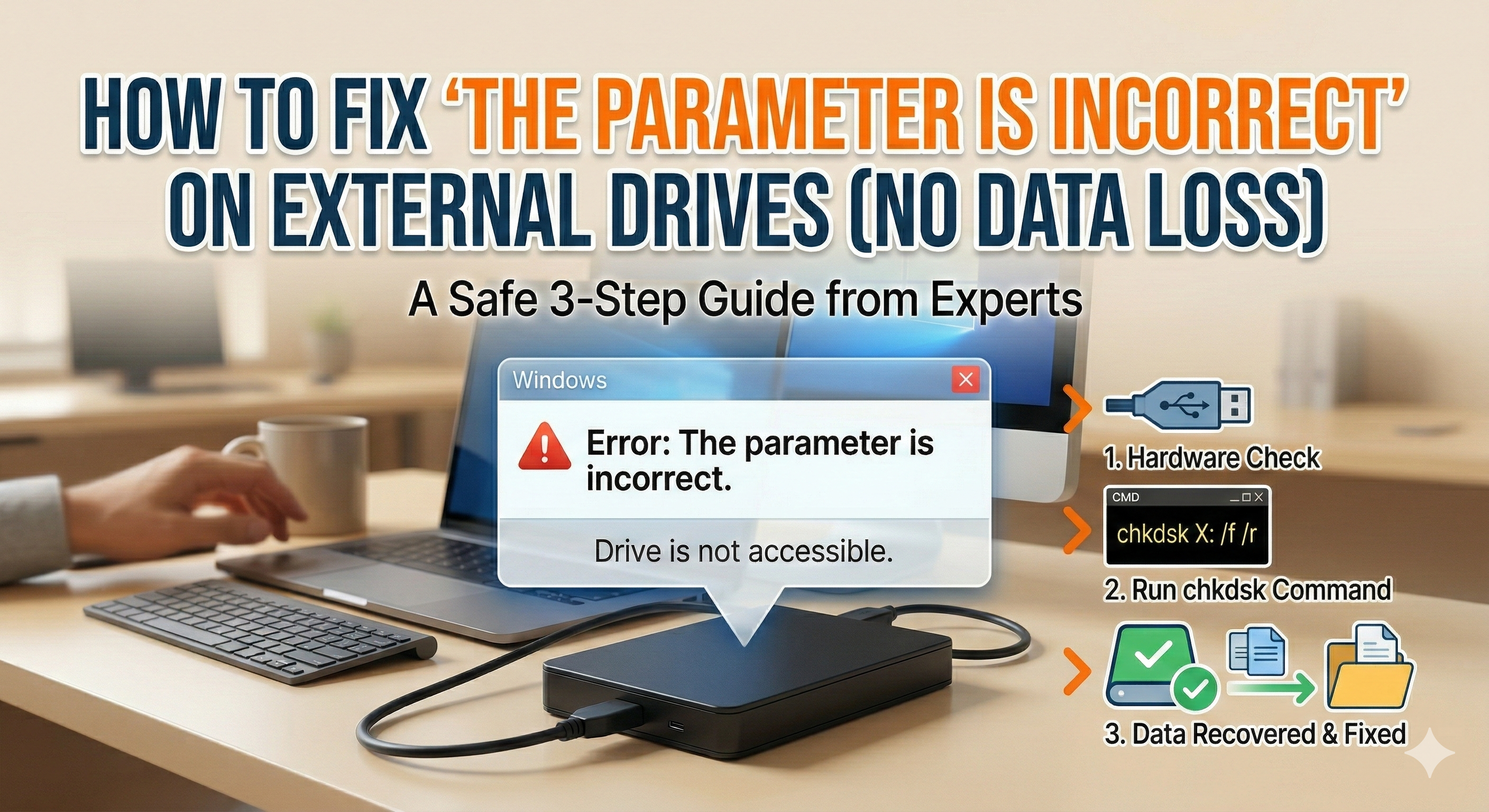
1. What Causes the "Parameter is Incorrect" Error?
This error occurs when Windows tries to access your drive but cannot understand its file system structure or directory. The computer and the hard drive are essentially speaking different languages due to missing or corrupted information.
Common culprits include:
- Unsafe Ejection: Pulling the USB cable out without using the "Safely Remove Hardware" option is the #1 cause of file system corruption.
- Power Supply Issues: A faulty USB cable or a weak USB port failing to provide enough power to the drive.
- Bad Sectors: Physical damage or wear and tear on the hard drive platter creating unreadable spots.
- Outdated Drivers: Conflicts between your Windows USB drivers and the external device.
2. Step-by-Step Fixes (From Easiest to Advanced)
Work your way through these solutions in order. They are designed to fix the problem without deleting your files.
Step 1: The Basic Hardware Check
Before diving into software fixes, rule out simple physical connections. It sounds basic, but it works surprisingly often.
- Try a different USB port: If you are using a desktop, plug the drive directly into the back of the motherboard rather than the front panel.
- Swap the cable: USB cables degrade over time. Try a spare one if you have it.
- Use another computer: Plug the drive into a different PC or laptop. If it opens normally there, your main computer has a driver or port issue, but your hard drive is safe!
Step 2: Repair with CHKDSK (Highly Recommended)
Windows has a built-in tool called Check Disk (chkdsk) that scans for file system errors and bad sectors, repairing them automatically.
- Click the Windows Start button, type cmd.
- Right-click on Command Prompt and select Run as administrator.
- In the black window, type the following command and hit Enter. (Note: Replace X: with the actual drive letter of your external hard drive, e.g., E:, F:)
- chkdsk X: /f /r
- The /f tells it to fix errors, and /r tells it to locate bad sectors and recover readable information. Wait for the process to finish (it may take a while depending on the drive size), then try opening your drive again.
Step 3: Change the Drive Letter
Sometimes, Windows gets confused with drive paths. Reassigning the drive letter can refresh the connection.
- Right-click the Windows Start button and select Disk Management.
- Locate your external hard drive in the list.
- Right-click it and choose Change Drive Letter and Paths.
- Click Change, assign a new letter from the drop-down menu (like Z: or M:), and click OK.
Step 4: Update or Reinstall USB Drivers
If your computer's drivers are glitching, it won't read the drive properly.
- Right-click the Start button and open Device Manager.
- Expand Disk drives, find your external hard drive, right-click it, and select Uninstall device.
- Unplug the hard drive, restart your computer, and plug it back in. Windows will automatically reinstall a fresh driver.
3. What If the Drive is "RAW" and Asks to Format?
If you check Disk Management and your drive's file system shows up as "RAW" instead of NTFS or exFAT, it means the partition table is severely corrupted. chkdsk usually won't work on RAW drives.
How to save your data: Do not format the drive. Instead, use reliable data recovery software (like Recuva, EaseUS Data Recovery Wizard, or Tenorshare 4DDiG).
- Run the recovery software to scan the RAW drive.
- Save your recovered files to a different drive (like your computer's internal storage).
- Once your data is safe, you can finally format the external hard drive to make it usable again.
4. How to Prevent This from Happening Again
Data loss is stressful. Keep these habits to protect your drives:
- Always "Safely Remove": Never just yank the cord. Always click the eject icon in the taskbar first.
- Follow the 3-2-1 Backup Rule: Keep 3 copies of your data, on 2 different types of media (e.g., external drive + laptop), with 1 copy stored offsite (like cloud storage).
- Handle with Care: Traditional HDDs have moving parts and are easily damaged by small drops or bumps. Use a padded case.
By following these steps, you should be able to clear the "parameter is incorrect" error and get back to your files.
'디지털 인사이트' 카테고리의 다른 글
| C:\Users\JUN\AppData\Roaming\Python\Python314\Scripts 윈도우 path 환경에 등록하려면 ? (1) | 2026.03.03 |
|---|---|
| 📄 AI 시대의 숨은 경쟁력: 우리가 HWP 대신 HWPX를 선택해야 하는 진짜 이유 (0) | 2026.03.03 |
| 갑자기 안 열리는 외장하드, '매개 변수가 틀립니다' 5분 만에 고치는 법 (3) | 2026.03.02 |
| How to Shop on Coupang Using a U.S. Credit Card: A Complete Guide for Expats (0) | 2026.03.02 |
| [PPT 꿀팁] 폰트 깨짐 없이, 용지 사이즈 상관없이 자유롭게 인쇄하는 완벽 가이드 (0) | 2026.03.02 |